
VSCode TypeScript Errors for All Files: A Complete Guide (2026)
Configure VSCode to detect TypeScript errors in all your project files, ensuring early error detection and a smoother development experience.

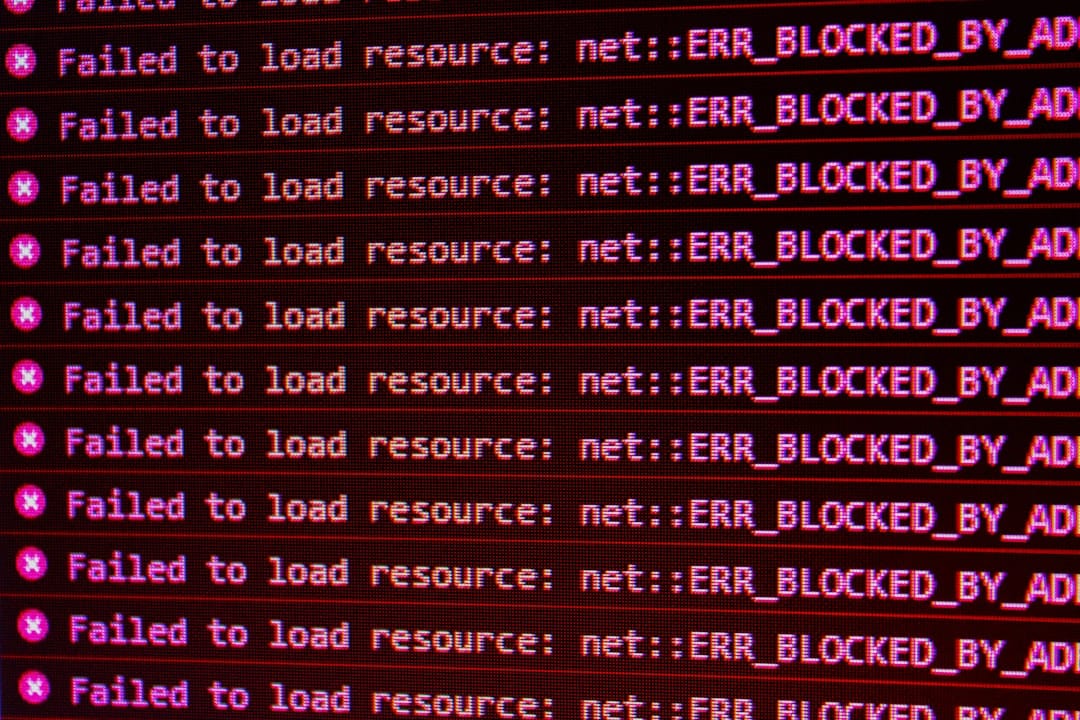
VSCode TypeScript Errors for All Files: A Complete Guide (2026)
Developers often face the issue of TypeScript errors only appearing for files currently open in the editor. This can lead to undetected errors until the application is run, which is far from ideal. In this guide, you will learn how to configure Visual Studio Code (VSCode) and TypeScript to show errors for all files in your workspace, not just the open ones.
Key Takeaways
- Configure VSCode to show TypeScript errors for all files, not just open ones.
- Utilize the TypeScript compiler in watch mode to detect errors early.
- Improve your development workflow by catching errors before running your app.
- Understand the role of tsconfig.json in managing TypeScript project settings.
This tutorial is crucial for improving your development workflow, ensuring that errors are caught early, and reducing the frustrating cycle of runtime debugging. By following these steps, you'll enhance your efficiency and code reliability.
Prerequisites
- Basic familiarity with VSCode and TypeScript.
- A working installation of Node.js and npm.
- Create React App setup with TypeScript (version 2.1.8 or later).
Step 1: Install Dependencies
Ensure that your TypeScript and VSCode installations are up-to-date. Open a terminal and run:
npm install -g typescript@latestThis command globally installs the latest version of TypeScript, ensuring you have the latest features and bug fixes.
Step 2: Create or Modify tsconfig.json
The tsconfig.json file is crucial for configuring TypeScript projects. If you don't have one, create it in the root of your project:
{
  "compilerOptions": {
    "target": "es6",
    "module": "commonjs",
    "strict": true,
    "esModuleInterop": true,
    "skipLibCheck": true,
    "forceConsistentCasingInFileNames": true
  },
  "include": ["src/**/*"],
  "exclude": ["node_modules", "build"]
}
This configuration ensures that TypeScript checks all files in your src directory while excluding node_modules and build directories.
Step 3: Configure VSCode Settings
Open your VSCode settings (press Ctrl + , or Cmd + , on Mac) and add these settings to your settings.json:
{
  "typescript.tsserver.experimental.enableProjectDiagnostics": true
}
This setting enables project-wide diagnostics, allowing VSCode to detect errors in all files, not just open ones.
Step 4: Use TypeScript Watch Mode
Add a script to your package.json to continuously watch your files for changes and report errors:
"scripts": {
  "watch": "tsc --watch"
}
Run the script using:
npm run watchThis command keeps the TypeScript compiler running in watch mode, immediately reporting any issues detected across all files.
Diagram showing the flow of TypeScript error detection in watch mode.
Common Errors/Troubleshooting
If you encounter issues:
- Errors not showing: Ensure your
tsconfig.jsonincludes all relevant files and directories. - Performance issues: Limit the scope by adjusting
includeandexcludepaths intsconfig.json. - Unexpected errors: Check for TypeScript version compatibility and update if necessary.
Conclusion
By following these steps, you can configure VSCode to show TypeScript errors for all files in your project, improving your development workflow and reducing runtime errors. Regularly updating your TypeScript version and maintaining a clean tsconfig.json can help ensure a smooth experience.
Frequently Asked Questions
How can I ensure TypeScript checks all files?
Ensure your tsconfig.json includes all relevant directories with the "include" key and excludes unnecessary ones with "exclude".
Why are my errors not showing in VSCode?
Check your VSCode settings to ensure "typescript.tsserver.experimental.enableProjectDiagnostics" is set to true.
What is TypeScript watch mode?
TypeScript watch mode continuously compiles your files and reports errors as you make changes, providing immediate feedback.