
Troubleshooting Docker: Why 'docker run' Does Nothing with React & Nginx (2026)
Discover why 'docker run' does nothing when deploying a React app with Nginx. Learn to troubleshoot Dockerfile configurations and common errors.

Deploying a React application using Docker can be an efficient way to manage your application in production environments. However, a common issue arises when running the docker run command, and nothing seems to happen. This tutorial will guide you through the process of diagnosing and resolving this issue, especially when deploying a React app using Nginx in a Docker container. Understanding the underlying reasons for this problem can save time and ensure your deployment process runs smoothly.
In this guide, we'll cover how to correctly configure your Dockerfile and ensure all components are properly set up. By the end, you'll have a working Docker setup ready to serve your React app with Nginx.
Prerequisites
- Basic understanding of Docker and Dockerfile syntax
- Working knowledge of React and Nginx
- Docker installed on your machine (version 24.0.0 or later)
- Node.js and Yarn installed for building the React app
Step 1: Understanding the Dockerfile Structure
Your Dockerfile is the blueprint for your Docker image. In this setup, we're using a multi-stage build to first compile the React application and then serve it using Nginx. Let's break down your existing Dockerfile:
FROM tiangolo/node-frontend:10 as build-stage
WORKDIR /app
COPY . ./
RUN yarn run build

FROM nginx:1.15
COPY --from=build-stage /app/build/ /usr/share/nginx/html
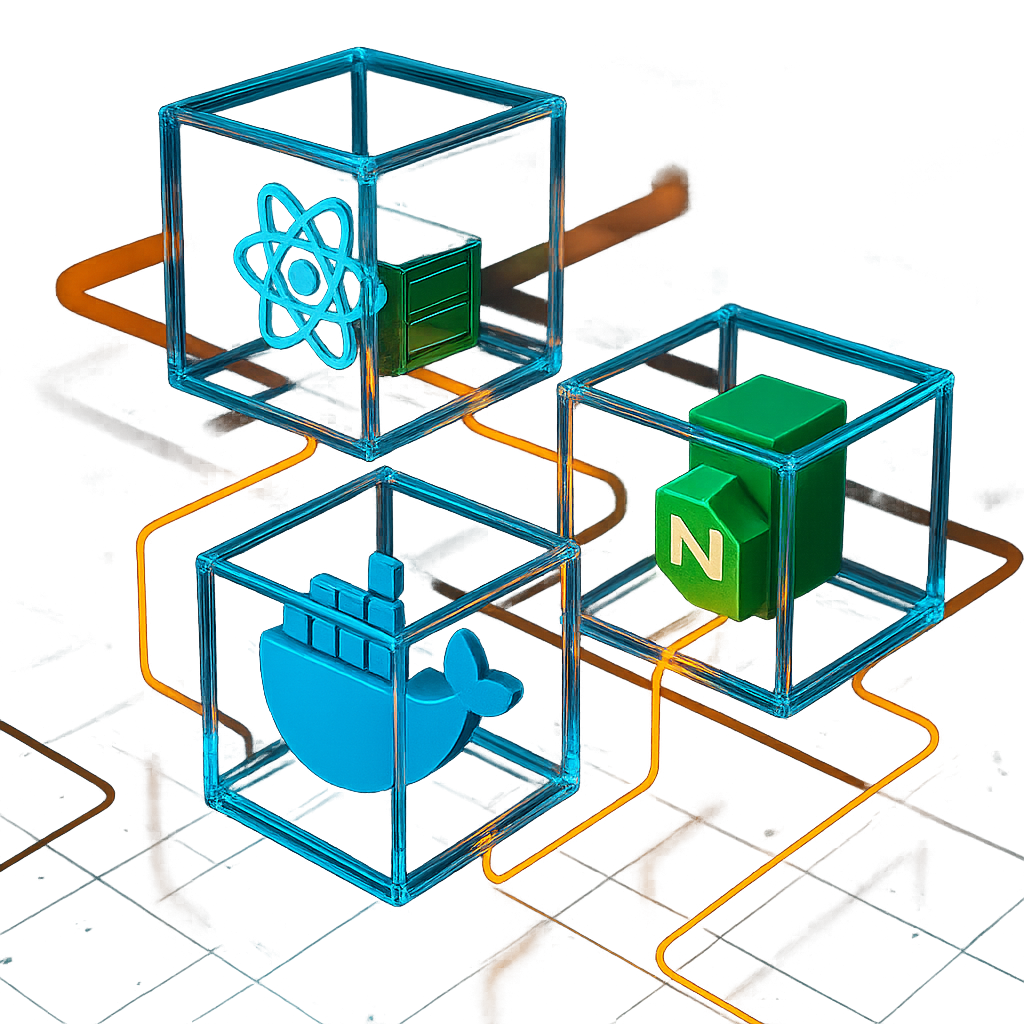
This Dockerfile consists of two stages: the build stage and the production stage. The build stage uses a Node.js base image to compile the React application. The production stage uses an Nginx base image to serve the compiled static files.
Common Misconfigurations
Ensure that each component is correctly configured. Here are common issues to check:
- Base Image: Verify that the base image is suitable for your Node.js version. The
tiangolo/node-frontend:10image should be compatible with your React app's Node version. - Build Command: Ensure the build command inside the Dockerfile matches the actual command used in your project (e.g.,
yarn run build). - File Paths: Double-check the paths in the
COPYcommands to ensure files are being copied to the correct locations.
Step 2: Running the Docker Build and Inspecting the Output
To build your Docker image, use the following command in your terminal:
docker build -t my-react-app .After running this command, Docker will execute the instructions in your Dockerfile. If any errors occur, they will be displayed in the terminal output. Look out for errors related to file copying, build failures, or missing dependencies.
Inspecting the Build Output
If the build phase completes without errors, you should see output indicating that your image has been successfully built. If no output appears, ensure Docker is installed and running correctly on your machine.
Step 3: Running the Docker Container
After building the image, run the container using:
docker run -p 80:80 my-react-appThis command maps port 80 of your Docker container to port 80 on your host machine, allowing you to access the application in your web browser at http://localhost.
Common Issues and Fixes
If the container runs but you can't access the application, consider these points:
- Port Mapping: Ensure that the ports are correctly mapped. If another service is using port 80 on your host, use a different port (e.g.,
-p 8080:80). - Network Issues: Check your firewall settings to ensure they are not blocking Docker traffic.
Common Errors/Troubleshooting
Error: "No such file or directory"
This often means there's a problem with the COPY command in your Dockerfile. Double-check the source and destination paths.
Error: "Failed to compile"
This indicates an issue during the React build process. Ensure all dependencies are listed in your package.json and try building the app locally outside of Docker to diagnose.
Error: "nginx: [emerg]"
This error suggests a problem with your Nginx configuration, often due to missing default parameters. Ensure your nginx.conf is correctly configured or use the default configuration provided by the Nginx image.
Conclusion
Deploying a React application using Docker and Nginx can seem daunting at first, but by understanding each component and carefully configuring your Dockerfile, you can avoid common pitfalls. With this guide, you should be able to troubleshoot why your docker run command does nothing and ensure your application is ready for production use.
Frequently Asked Questions
Why does my Docker container exit immediately?
This can happen if the command specified in the Dockerfile doesn't run in the foreground. Ensure that Nginx is configured to run as the main process.
How do I debug build errors in Docker?
Check the build logs for errors, verify file paths in COPY commands, and ensure all dependencies are correctly listed in package.json.
What should I do if the React app doesn't load?
Check that the container's ports are correctly mapped to the host and that no firewall rules are blocking access.
Frequently Asked Questions
Why does my Docker container exit immediately?
This can happen if the command specified in the Dockerfile doesn't run in the foreground. Ensure that Nginx is configured to run as the main process.
How do I debug build errors in Docker?
Check the build logs for errors, verify file paths in COPY commands, and ensure all dependencies are correctly listed in package.json.
What should I do if the React app doesn't load?
Check that the container's ports are correctly mapped to the host and that no firewall rules are blocking access.