
Remove Black Background and Crop Image: A Step-by-Step Guide (2026)
Learn to remove black backgrounds and crop images with Python and OpenCV in this detailed guide. Ideal for creating clean, professional visuals.

Remove Black Background and Crop Image: A Step-by-Step Guide (2026)
Dealing with backgrounds in images, especially black ones, can be a challenging task if you're aiming for a clean, professional look. Whether you're preparing images for a presentation, a website, or any creative project, removing unwanted backgrounds is crucial. This guide will walk you through removing black backgrounds and cropping out target parts using Python and OpenCV, a powerful library for computer vision tasks.
Key Takeaways
- Learn to remove black backgrounds using Python and OpenCV.
- Understand the importance of image processing techniques.
- Implement edge detection and contour finding for cropping.
- Troubleshoot common issues in image processing.
Prerequisites
Before diving in, ensure you have the following:
- Basic knowledge of Python programming.
- Python installed on your system (Python 3.8 or later recommended).
- OpenCV library installed. You can install it using
pip install opencv-python. - An image with a black background that you want to process.
Step 1: Load Your Image
First, we will load the image using OpenCV. OpenCV's imread() function allows us to read images easily.
import cv2

# Load the image
image = cv2.imread('path_to_your_image.jpg')

# Display the original image
cv2.imshow('Original Image', image)
cv2.waitKey(0)
cv2.destroyAllWindows()
Ensure the path to your image is correct. This step will display the original image for verification.
Step 2: Convert to Grayscale
Converting the image to grayscale simplifies further processing. Most background removal operations work better on single-channel images.
# Convert the image to grayscale
gray_image = cv2.cvtColor(image, cv2.COLOR_BGR2GRAY)

# Display the grayscale image
cv2.imshow('Grayscale Image', gray_image)
cv2.waitKey(0)
cv2.destroyAllWindows()
Step 3: Apply Thresholding
We'll apply a binary threshold to create a mask. This step helps in distinguishing the black background from the target object.
# Apply binary thresholding
_, thresholded_image = cv2.threshold(gray_image, 1, 255, cv2.THRESH_BINARY)

# Display the thresholded image
cv2.imshow('Thresholded Image', thresholded_image)
cv2.waitKey(0)
cv2.destroyAllWindows()
In this code, we use a threshold value of 1 to separate the black background from other elements.
Step 4: Find Contours
Contours are a useful tool for shape analysis and object detection. We'll find contours in the thresholded image to identify the target area.
# Find contours
contours, _ = cv2.findContours(thresholded_image, cv2.RETR_EXTERNAL, cv2.CHAIN_APPROX_SIMPLE)

# Draw contours
for contour in contours:
    cv2.drawContours(image, [contour], -1, (0, 255, 0), 3)

# Display image with contours
cv2.imshow('Contours', image)
cv2.waitKey(0)
cv2.destroyAllWindows()
This code will highlight the contours in the image, helping you visualize the target areas.
Step 5: Crop the Target Area
Using the contours, we can extract the bounding box of the target area and crop it.
# Assume the largest contour is the target
largest_contour = max(contours, key=cv2.contourArea)
x, y, w, h = cv2.boundingRect(largest_contour)
cropped_image = image[y:y+h, x:x+w]

# Display the cropped image
cv2.imshow('Cropped Image', cropped_image)
cv2.waitKey(0)
cv2.destroyAllWindows()
This step crops the image to the bounding rectangle of the largest contour, assuming it represents the target area.
Common Errors/Troubleshooting
Here are some common issues you might encounter:
- Contours Not Detected: Check if the threshold value is appropriate for your image.
- Wrong Area Cropped: Ensure the largest contour is indeed your target. Manually inspect contours if necessary.
- Image Not Displaying: Verify your image path and ensure OpenCV is installed correctly.
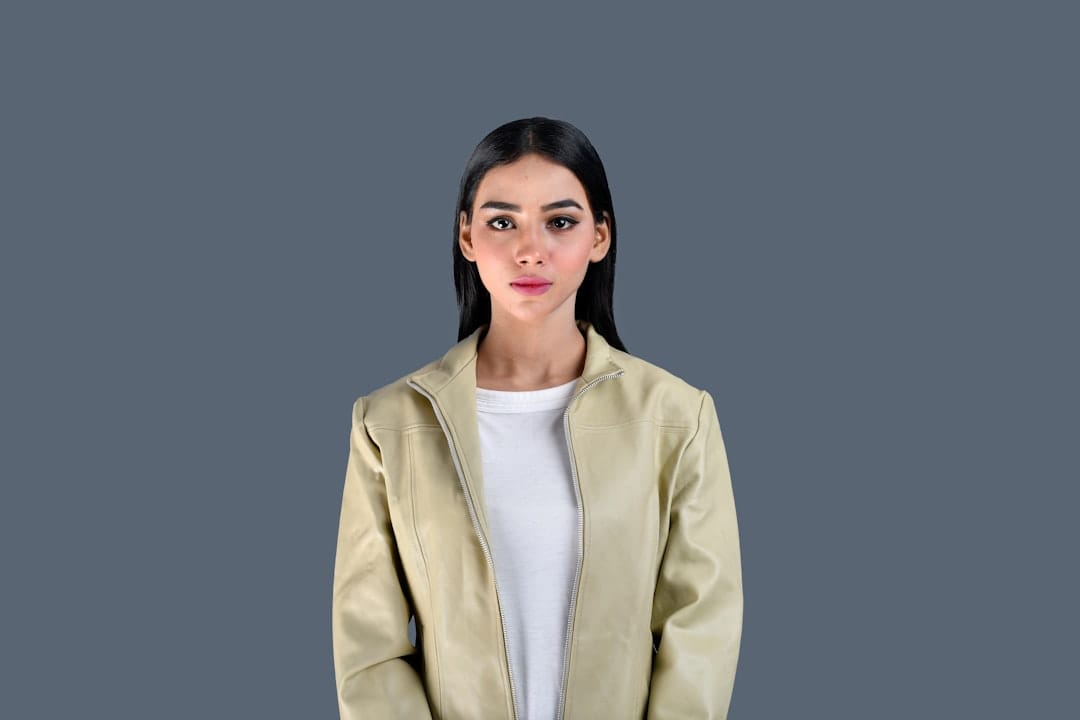
Image showing the process of removing a background and cropping an image using OpenCV.
Frequently Asked Questions
Can I use this method for other background colors?
Yes, but you'll need to adjust the thresholding values to target different colors.
What if the target area is not the largest contour?
You can manually inspect and select the correct contour by area or other features.
Is OpenCV the only library for this task?
No, other libraries like PIL or even tools like Photoshop can also achieve similar results.