
Generate Clean PDFs from Web Pages with Python: A Complete Guide (2026)
Learn to create clean PDFs from web pages using Python, removing artifacts like sticky headers and ads. Enhance your research archive efficiently.

In today's digital age, archiving web content in a clean and accessible format is essential for research and documentation. PDFs are a popular choice due to their portability and consistent formatting across devices. However, converting web pages to PDFs without including unwanted artifacts like sticky headers, ads, and broken images can be challenging. This guide will help you create a Python script that extracts article content from a URL, generates a clean PDF, and uploads it to Google Drive. This process will streamline your workflow, allowing you to archive 10-20 articles daily, making them accessible across devices.
By the end of this tutorial, you'll be able to generate clean PDFs from web pages without print dialog artifacts, ensuring a clear and professional look for your research documents. This guide is perfect for researchers, students, or anyone looking to maintain a digital archive of web content.
Prerequisites
- Python 3.8 or later installed on your system.
- Basic knowledge of Python programming.
- Access to Google Drive and knowledge of setting up API credentials.
- Internet connection to fetch web pages and upload PDFs.
Step 1: Setting Up the Python Environment
First, ensure that you have Python and pip installed. You can verify this by running:
python --version
pip --version
If not installed, download Python from the official website and install it.
Next, install the necessary Python libraries:
pip install requests beautifulsoup4 weasyprint google-auth google-auth-oauthlib google-auth-httplib2 google-api-python-clientStep 2: Fetching and Parsing Web Page Content
We will use the requests and BeautifulSoup libraries to fetch and parse the web page content. This step is crucial for extracting clean article content.
import requests
from bs4 import BeautifulSoup

def fetch_article_content(url):
    response = requests.get(url)
    soup = BeautifulSoup(response.text, 'html.parser')
    # Remove unwanted elements like headers, footers, ads
    for tag in soup(['header', 'footer', 'aside', 'nav', 'ads']):
        tag.decompose()
    # Extract the main content
    article = soup.find('article')
    return article.prettify() if article else ''
This function fetches the HTML content of the page and removes unnecessary tags such as headers, footers, and ads. It then extracts the main article content.
Step 3: Generating a Clean PDF
With the content extracted, we can now convert it into a PDF using WeasyPrint:
from weasyprint import HTML

def generate_pdf(html_content, output_filename):
    HTML(string=html_content).write_pdf(output_filename)
    print(f'PDF generated: {output_filename}')

# Example usage
url = 'https://example.com/article-url'
article_content = fetch_article_content(url)
generate_pdf(article_content, 'clean_article.pdf')
The function generate_pdf takes HTML content and a filename, then generates a PDF using WeasyPrint. Ensure the HTML content is well-structured to avoid formatting issues in the PDF.
Step 4: Uploading PDFs to Google Drive
To upload the generated PDF to Google Drive, we'll use the Google Drive API. Ensure you have your credentials JSON file ready.
import os
from google.oauth2.credentials import Credentials
from googleapiclient.discovery import build

SCOPES = ['https://www.googleapis.com/auth/drive.file']

# Load credentials and create a Drive API client
def create_drive_service():
    creds = Credentials.from_authorized_user_file('credentials.json', SCOPES)
    service = build('drive', 'v3', credentials=creds)
    return service

# Upload file to Google Drive
def upload_to_drive(file_path, service):
    file_metadata = {'name': os.path.basename(file_path)}
    media = MediaFileUpload(file_path, mimetype='application/pdf')
    file = service.files().create(body=file_metadata, media_body=media, fields='id').execute()
    print(f'File ID: {file.get("id")}'

service = create_drive_service()
upload_to_drive('clean_article.pdf', service)
This code uploads the PDF to Google Drive and outputs the file ID. You can access the uploaded file from any device linked to your Google account.
Common Errors and Troubleshooting
While working with web scraping and PDF generation, you might encounter several issues. Here are a few common ones and how to resolve them:
- Incomplete or malformed HTML: Ensure that the selected HTML elements are correctly identified and removed. Use browser developer tools to inspect the webpage structure.
- WeasyPrint errors: Verify that the HTML content is valid. WeasyPrint requires well-formed HTML/CSS to generate PDFs effectively.
- Google Drive API authentication issues: Make sure your Google Cloud project is correctly set up and the credentials JSON file is accurate.
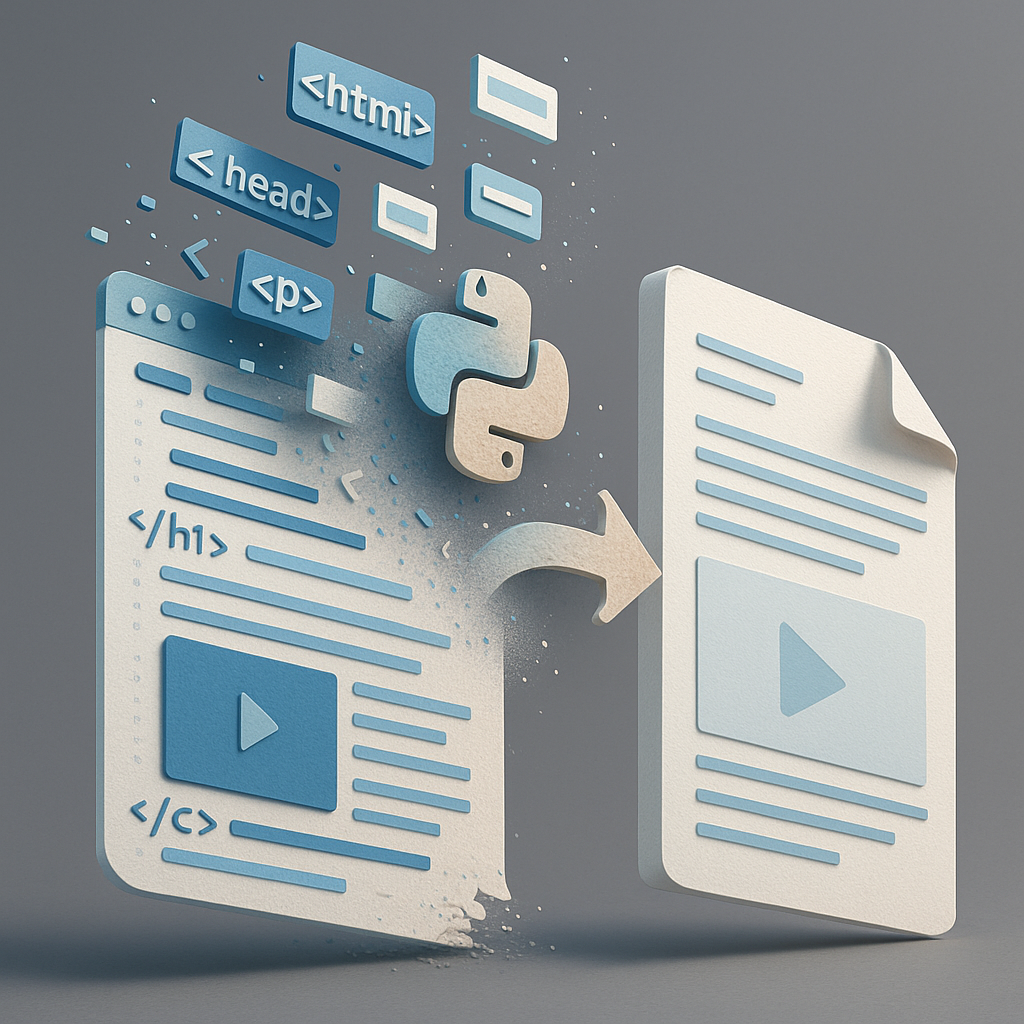
By following this guide, you can successfully create a script that fetches web content, cleans it, converts it to a PDF, and uploads it to Google Drive. This efficient process will help you maintain a clean, accessible archive of web articles, enhancing your research capabilities.
Frequently Asked Questions
Why use WeasyPrint for PDF generation?
WeasyPrint offers a high-quality conversion of HTML/CSS to PDF, maintaining the integrity of web page content.
How can I remove unwanted elements from a webpage?
Use BeautifulSoup to parse and decompose unwanted HTML tags like headers, footers, and ads.
What are common issues with Google Drive API?
Authentication errors are common. Ensure your API credentials are correctly set up and the JSON file is accurate.